

🌀 Portals – Travel Across MCPlanet
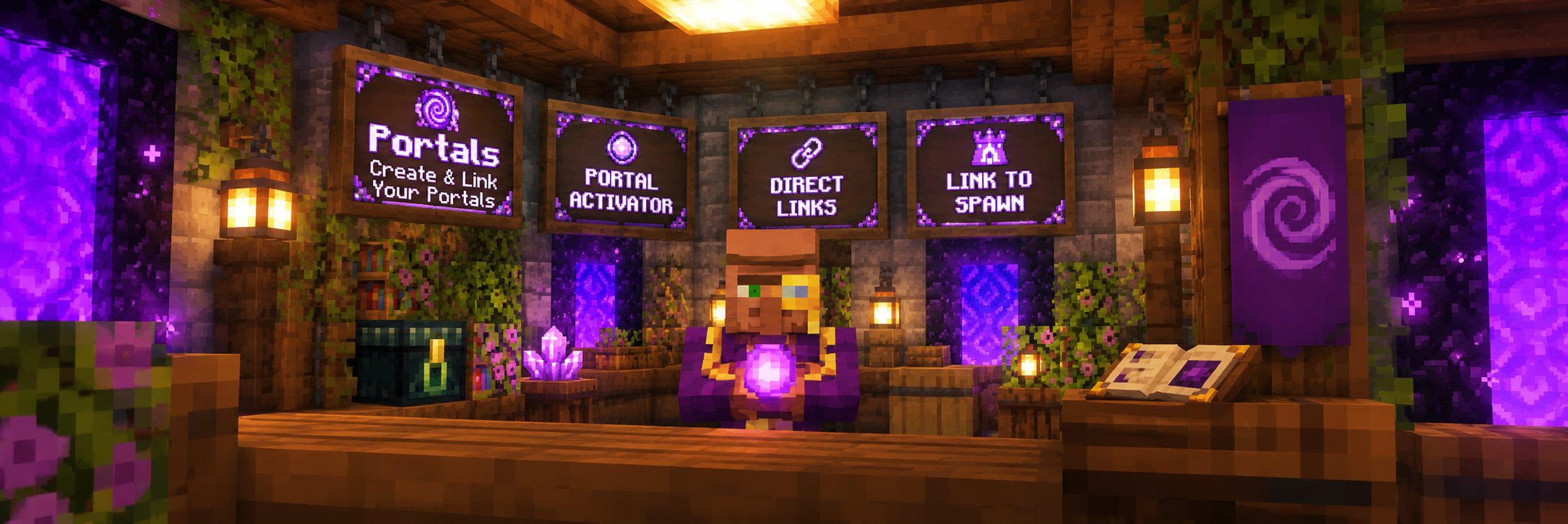
Welcome to Portals, MCPlanet's custom player travel system.
Portals allow you to create permanent gateways between locations across the world. Connect your bases together, create transport routes between settlements, or make your destination accessible through the central Spawn Portal.
Everything can be managed through a simple in-game menu using:
/portals
From there you can manage your Portals, rename them, control access, create direct links and choose whether they appear through the Spawn Portal.
🔥 Getting a Portal Activator
To create a Portal, you'll first need a:
🌀 Portal Activator
Portal Activators are special one-use items used to activate a Portal you've built.
Once you've obtained one, you're ready to build your gateway.
Important: A Portal Activator is consumed when the Portal is successfully created.
🧱 Building a Portal
MCPlanet Portals are built using:
Chiseled Stone Bricks
Unlike ordinary Nether Portals, your Portal doesn't have to be a rectangle.
Build a completely enclosed frame from Chiseled Stone Bricks and MCPortals will automatically detect the enclosed space.
This means you can get creative with your Portal designs rather than every gateway having to look exactly the same.
Your Portal must form a completely closed frame for the system to recognise it.
🌀 Activating Your Portal
Once your frame is complete:
- Hold your Portal Activator.
- Right-click one of the Chiseled Stone Bricks forming the frame.
- MCPortals will check the structure.
- If a valid enclosed Portal is detected, the Portal will activate.
- Your Portal Activator will be consumed.
- Your new Portal can then be managed using
/portals.
The inside of the frame will transform into an active Portal surface.
If the structure isn't completely enclosed or isn't made from the correct material, the Portal won't activate.
⚙️ Managing Your Portals
Use:
/portals
to open Your Portals.
Select one of your Portals to open its management menu.
From here you can manage features including:
- 🟢 Portal Active — Enable or disable the Portal.
- 🏷️ Rename Portal — Give your Portal its own custom name.
- 🌀 Link to Spawn — Make the Portal available through the central Spawn Portal.
- 🔗 Direct Link — Connect two of your own Portals directly together.
- 🔒 Private Portal — Restrict who is allowed to use the Portal.
- 👥 Allowed Players — Choose players who may use a private Portal.
- 🗑️ Delete Portal — Permanently remove the Portal.
🔗 Direct Linking Portals
If you own two Portals, you can connect them directly together.
For example:
🏠 Home Portal ⇄ ⛏️ Mining Base
or:
🏰 Castle ⇄ 🏘️ Village
Open /portals, select your Portal and choose:
Direct Link
You can then select another one of your Portals as its destination.
Direct links work both ways.
Entering Portal A takes you to Portal B, and entering Portal B takes you back to Portal A.
This gives you a permanent physical transport route between two locations without needing to type teleport commands.
🌍 Linking a Portal to Spawn
Not every Portal needs another Portal directly connected to it.
Instead, you can enable:
Link to Spawn
This adds your Portal as an available destination through MCPlanet's central Spawn Portal.
When players enter the Spawn Portal, they'll be shown a menu containing the Portal destinations they're allowed to access.
Choose a destination and you'll be transported to that Portal.
This makes the Spawn Portal a central travel hub connecting locations around MCPlanet.
🌀 Direct Link or Spawn Link?
Each Portal can use one of the two connection systems.
🔗 Direct Link
Connects two of your own Portals directly together.
Portal A ⇄ Portal B
🌍 Link to Spawn
Adds the Portal to the destination list available from the central Spawn Portal.
Spawn Portal → Your Portal
A Portal cannot be Direct Linked while Link to Spawn is enabled.
If you want to change connection type, simply disable the existing connection option first.
🚶 Using a Portal
Once your Portal is active and has a destination, simply:
Walk into the Portal.
There's no command to type every time you travel.
Player Portals behave similarly to a traditional Minecraft Portal — remain inside briefly while the Portal charges, and MCPortals will transport you to its configured destination.
There's also a short teleport cooldown to prevent players from immediately bouncing backwards and forwards between connected Portals.
🏛️ The Spawn Portal
MCPlanet has a special central Spawn Portal.
Unlike normal player Portals, entering the Spawn Portal doesn't immediately send you somewhere.
Instead, approaching it opens the:
🌍 Portal Destination Menu
This displays the Spawn-linked Portals that you're allowed to access.
Simply select the Portal you want and you'll be transported there.
Private Portals you don't have permission to use won't be available to you.
Think of it as MCPlanet's central Portal station. 🚉
🔒 Private Portals
Don't want everybody travelling through your Portal?
Enable:
Private Portal
from the Portal management menu.
You can then use Allowed Players to choose which players are permitted to use it.
This is useful for private bases, shared projects or locations intended only for particular players.
Public Portals can instead be left unrestricted for community use.
👥 Allowed Players
Portal owners can maintain their own list of trusted players.
When Private Portal is enabled, only the owner and permitted players can use that Portal.
Manage your access list through:
/portals → Select Portal → Allowed Players
This allows you to share a Portal with friends without making the destination available to everybody.
🟢 Activating & Deactivating Portals
You don't have to destroy a Portal simply because you temporarily don't want it being used.
Every Portal has an:
Active / Inactive
setting.
Disable the Portal and travel through it is suspended.
When you're ready to use it again, simply enable it from /portals.
Your Portal and its settings remain stored while it is inactive.
🏗️ Portal Designs
MCPlanet Portals aren't restricted to the traditional rectangular Nether Portal shape.
As long as your Chiseled Stone Brick frame forms a valid closed shape, MCPortals can detect the enclosed Portal area.
That gives you much more freedom when incorporating Portals into builds.
You could create:
Castle gateways • Ancient ruins • Wizard towers • Underground stations • Temple entrances • Town transport hubs
Just remember:
The frame must be completely enclosed.
💥 Protecting Your Portal
Be careful with the physical Portal frame.
The structure isn't just decoration — MCPortals remembers the blocks that form the Portal.
If part of a registered Portal's frame is destroyed, the Portal itself is automatically removed.
This prevents broken or incomplete Portal structures from remaining registered on the server.
If you're redesigning the surrounding area, don't accidentally knock a chunk out of your Portal frame! 😂
🏰 Portals & Realms
Portals are ideal for connecting different areas of your Realm or travelling between distant bases.
However, Portals don't bypass MCPlanet's normal land protection.
Building and interaction restrictions from Realms and other protected server areas still apply.
Owning or having access to a Portal doesn't automatically give you permission to modify the land surrounding its destination.
🌎 Dimensions
MCPortals is designed primarily as MCPlanet's Overworld travel system.
Portal creation and travel in other dimensions are controlled separately by the server.
If Portal travel is disabled in a particular dimension, you won't be able to create or use an MCPortal there.
This is separate from Minecraft's normal Nether Portal mechanics.
🗑️ Deleting a Portal
If you no longer need one of your Portals, open:
/portals
Select the Portal and choose:
🗑️ Delete Portal
The Portal will be permanently removed.
If it was directly connected to another Portal, that direct connection is removed as well.
You can also physically destroy part of the Portal frame, which causes MCPortals to recognise that the structure has been broken and remove the Portal.
💡 A Few Things to Remember
- 🌀 Build Portal frames using Chiseled Stone Bricks.
- 🔥 A Portal Activator is required to create a Portal.
- ♻️ Portal Activators are consumed when used.
- 🧱 Portal frames must form a completely closed shape.
- 🎨 Portals don't have to be rectangular.
- 🔗 Direct Links connect two of your own Portals in both directions.
- 🌍 Link to Spawn makes a Portal accessible through the Spawn Portal.
- 🔒 Private Portals can be restricted to selected players.
- 🟢 Portals can be enabled or disabled without deleting them.
- 💥 Breaking the Portal frame automatically removes that Portal.
- ⚙️ Use
/portalswhenever you need to manage your gateways.
❓ Need Help?
If you're unsure how to build or activate a Portal, can't find your destination, or something isn't behaving as expected, contact the MCPlanet Staff Team.
We'll be happy to help.